
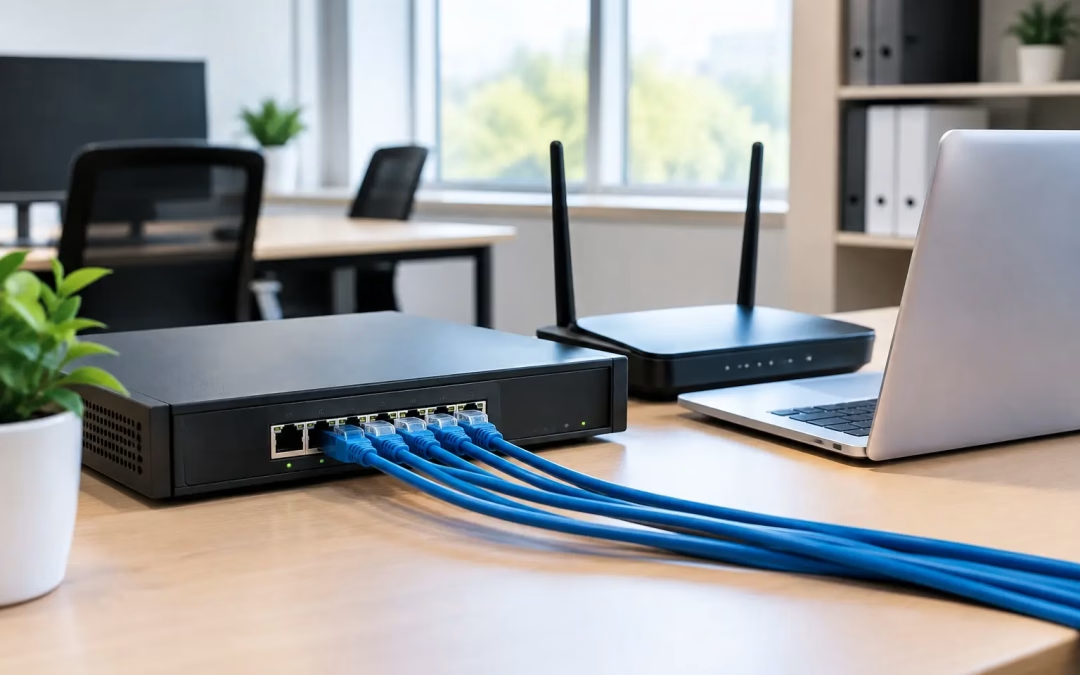
A slow shared drive, dropped video calls, and Wi-Fi that fails in the conference room are rarely solved by replacing one router. They usually point to a network that was never planned for the way the business actually works. Knowing how to set up a LAN for a small business starts with mapping the office, selecting the right hardware, and building a physical network that can be supported as your team grows.
A local area network, or LAN, connects computers, printers, phones, cameras, servers, and wireless access points within one site. A good small-business LAN gives staff reliable access to the internet and shared resources while keeping business devices separate from guest traffic and protected from unauthorized access.
Start With the Way Your Office Operates
Before buying switches or running cable, document what needs to connect and where it will be located. Count current users, then account for planned hires, workstations, printers, point-of-sale equipment, VoIP phones, cameras, conference room displays, access control devices, and wireless devices.
This assessment should also identify where employees experience problems. If the finance office has weak Wi-Fi, a hardwired connection may be the right answer. If field staff gather in a training room with laptops and tablets, the better solution may be another access point. Each use case affects cabling routes, switch capacity, wireless coverage, and security settings.
Create a simple floor plan that marks desk locations, network closet space, meeting rooms, reception areas, and equipment that must remain connected. For an office move or renovation, do this early enough that cabling can be installed before furniture and finishes make the work harder.
Build the LAN Around a Central Network Closet
Most small-business networks need a central, secure location for the modem or internet handoff, firewall, switch, patch panels, and battery backup. This may be a dedicated telecom room, a locked closet, or a properly planned equipment cabinet. It should be accessible for maintenance but not open to employees or visitors.
Avoid placing core equipment under a receptionist’s desk or in a storage area that gets hot, dusty, or crowded. Network gear needs airflow, organized cable management, and room for future additions. A battery backup can keep equipment running through brief power interruptions and provide time for an orderly shutdown during a longer outage.
The basic traffic path should be straightforward: internet service enters the building, passes through a business-grade firewall or router, reaches a managed network switch, and then travels through structured cabling to devices and access points. A patch panel between the switch and permanent office cabling keeps connections labeled and easier to service.
Choose Cabling That Supports Future Growth
For most offices, Cat6 cabling is a practical baseline for new data runs. It supports gigabit connections and gives many small businesses room to grow. Cat6A can make sense where longer runs, higher bandwidth needs, dense wireless deployments, or long-term expansion justify the additional investment. Existing Cat5e may still support many day-to-day connections, but it should be tested before relying on it for upgrades.
Hardwire fixed devices whenever possible. Desktop computers, printers, VoIP phones, cameras, conference room systems, and stationary access points generally perform better on a wired connection than on Wi-Fi. This also reduces wireless congestion for mobile devices that truly need it.
Every cable should be labeled at both ends and tested after installation. Labels should identify the room, outlet, and patch-panel port in a format your staff or IT provider can understand later. A neat installation is not just about appearance. It cuts troubleshooting time when a user moves desks, a device loses connection, or a new system is added.
Plan Ports for the Real World
A common mistake is installing one data outlet per office because each room has one computer today. A workstation may later need a phone, docking station, printer, or second device. Conference rooms often require several connections for displays, room controllers, cameras, and access points.
Adding capacity during construction or an office refresh usually costs less and causes less disruption than opening walls later. Plan spare ports at desks, reception, shared work areas, and any location where business systems may expand.
Select the Right Router, Firewall, and Switches
Consumer all-in-one routers are rarely the best choice for a growing business. A business-grade firewall provides more control over security, user access, remote connectivity, and network segmentation. It should support current internet speeds and leave capacity for added users, cloud applications, and VPN traffic.
Managed switches are worth the investment because they allow you to organize traffic into separate virtual networks, called VLANs. For example, employee computers can use one VLAN, guest Wi-Fi another, and cameras or other operational devices a third. Separating these devices limits unnecessary access and makes it easier to manage problems without affecting the entire office.
Choose a switch with enough ports for existing wired devices plus reasonable growth. If access points, cameras, or phones need power through the network cable, use a Power over Ethernet, or PoE, switch with enough power budget for all connected devices. Port count alone is not enough. A switch may have 24 ports but still fall short if its PoE capacity cannot support every planned device.
Keep Guest Wi-Fi Off the Business Network
Guest Wi-Fi should be separate from internal business resources. Visitors need internet access, not access to printers, shared folders, cameras, or staff devices. Create a guest network with its own password or portal, and keep it isolated through VLAN and firewall rules.
The same principle applies to smart TVs, conference room devices, and cameras. Some of these devices are necessary, but they do not need the same permissions as payroll computers or file servers. Segmentation is one of the most effective security improvements a small business can make without complicating everyday work.
Design Wi-Fi as Part of the LAN
Reliable Wi-Fi does not come from placing one access point near the internet connection and hoping the signal reaches every room. Access point placement should consider wall materials, office layout, user density, and areas where staff rely on calls or cloud applications.
In a small office, one well-placed access point may be enough. In a larger suite, warehouse, medical office, or building with dense walls, multiple access points may be needed. Each access point should have a wired connection back to the switch whenever possible. Wireless repeaters can help in limited situations, but they usually reduce available performance and add another point of failure.
A site survey or coverage assessment helps determine placement before installation. It is especially valuable when dependable Wi-Fi matters in conference rooms, customer waiting areas, outdoor workspaces, or spaces with challenging construction materials.
Configure Security Before Users Connect
A LAN is not finished when devices can reach the internet. Change default administrative credentials, apply current firmware, and create separate administrator accounts rather than sharing one password. Use strong Wi-Fi encryption and a unique passphrase for every network.
Set firewall rules that allow only the access your business needs. Disable unused services and remote management features unless they are required and secured. If employees or managed service providers need remote access, use a properly configured VPN with multi-factor authentication where available.
Backups matter here as well. Save configuration backups for the firewall, switches, and access points in a secure location. If hardware fails or settings are changed incorrectly, a current configuration can reduce downtime significantly.
Test the Network Before Turning It Over
Testing should include more than checking whether a laptop loads a website. Verify cable performance, confirm every labeled outlet reaches the correct switch port, test wired and wireless speeds in the areas where staff work, and confirm that guest traffic cannot reach internal resources.
Check that phones, printers, cameras, and conference room equipment operate as expected. Test failover or backup internet service if your business uses it. Document IP address ranges, VLANs, hardware locations, admin ownership, and warranty details. That documentation becomes valuable during troubleshooting, expansion, or an office relocation.
For Charleston-area businesses, All Wiring Needs can plan and install the cabling, hardware layout, Wi-Fi coverage, and security-focused network foundation as one coordinated project. That approach helps avoid the gap between a clean cabling installation and a network that is actually ready for staff to use.
Plan for Support, Not Just Installation
Every LAN needs an owner. That may be an internal IT leader, an MSP, or a designated vendor, but responsibilities should be clear. Decide who receives outage alerts, who approves new device connections, who maintains passwords and firmware, and who has access to the network documentation.
Review the network when your headcount, floor plan, cloud applications, or security requirements change. The best time to add cabling, switch capacity, or access points is before poor performance becomes a daily operational problem. A well-planned LAN gives your business a dependable foundation to work from, while leaving room for the next desk, device, or location you need to support.
#SmallBusinessLAN #BusinessNetwork #LANSetup #OfficeNetwork #StructuredCabling #BusinessWiFi #NetworkInstallation #Cat6Cabling #ManagedSwitches #NetworkSecurity #GuestWiFi #ReliableWiFi #ITInfrastructure #CharlestonSC #CharlestonBusiness #CableManagement #AccessPoints #FutureProofNetwork #NetworkDesign